The version 14 release of macOS (aka “Sonoma”) added a “Reactions” feature that seems to have been enabled by default.
If you hold up a thumbs-up gesture with your actual hand, the system will recognize the gesture and show a virtual overlay of a thumbs-up graphic in a bubble overplayed on your video. I don’t know why you’d want a “virtual” thumbs up showing when everyone can already see your actual thumbs-up. Other animations include a thumbs-down, a heart, and rain.

I’ve seen these gestures triggered accidentally, and can easily imagine an accidental reaction animation being wildly inappropriate. The animations are often understandably attributed to Zoom, instead of macOS where they are actually coming from.
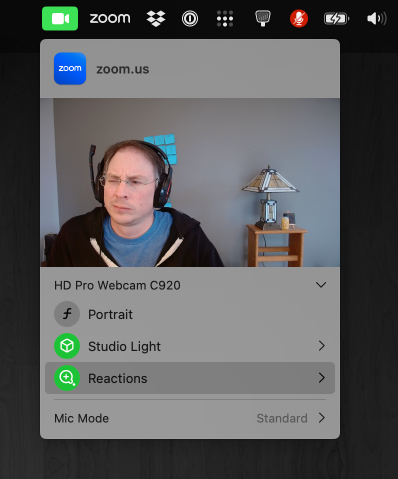
Apple has some documentation explaining how to turn off these reaction animations. The short explanation is:
- When your camera is on, click on the bright green/white camera icon
 in the top right system menu
 - Click the “Reactions” item to toggle it off (or back on)
- Bonus: you can manually trigger these animations using the same green camera menu, clicking the arrow to the right of “Reactions” and clicking on a particular reaction.
There are a few other gestures and associated animations. I will admit to using the rave-lasers-background to generate mirth among my peers.
BREAKING NEWS UPDATE: This accidental triggering of macOS Reactions happens on the inaugural episode of WikiHole with D’Arcy Carden (around the 17m40s point).