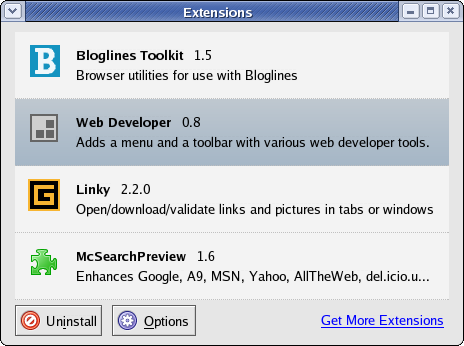
I use a few Firefox extensions that I thought might be useful to others. Here’s a quick overview of the extensions I use and why I like them.
- Linky
-
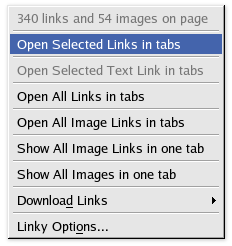
I’ve written about Linky before, and I still use it regularly. Linky is a simple extension that adds the ability to open a group of links in new tabs or windows. For example, if you have a page with a linked list of screenshots, you can select the list of links, and use Linky to open all of the links in new tabs. Then the screenshots will download each in their own tab, and you can easily browse through them. Here’s a screenshot of the Linky menu.
- McSearchPreview
-
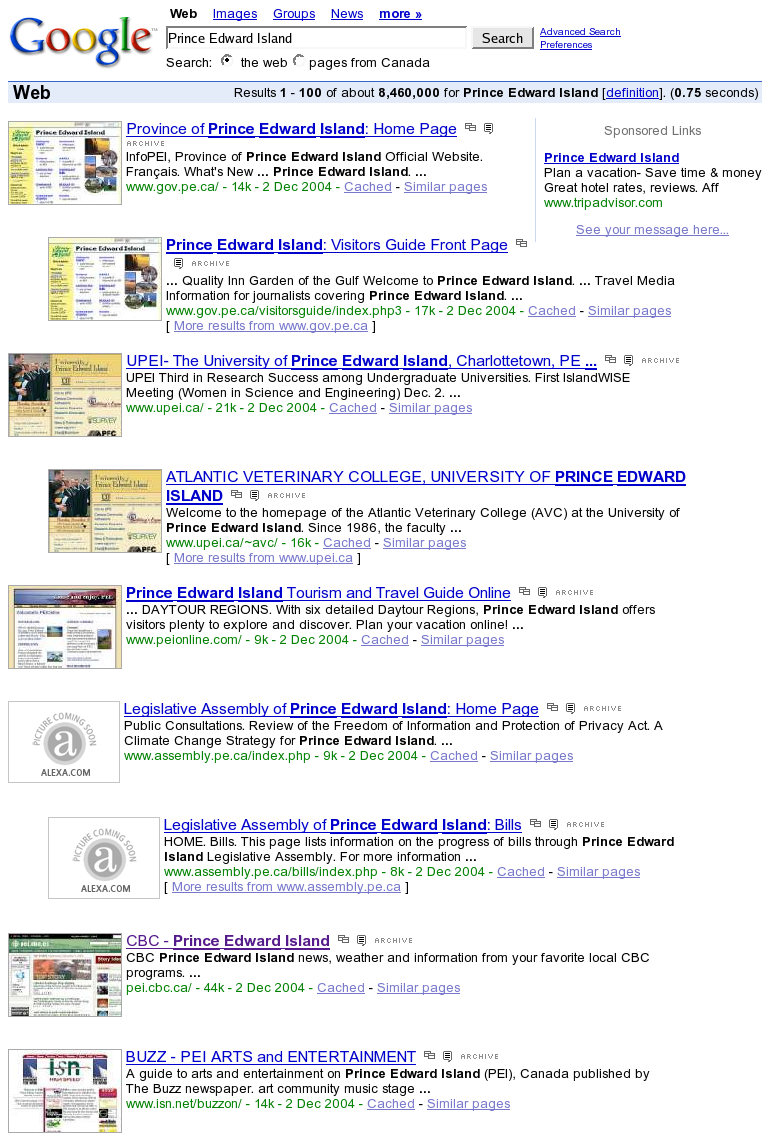
This is a simple extension that makes Google search results pages (and A9, MSN, del.icio.us, and Amazon) display thumbnails of the sites next to each of the search results. Here’s a screenshot of a Google search results page with McSearchPreview installed.
It’s a cool example of how extensions can build and improve upon existing websites/services. All you do is install the plugin, and go search Google. The thumbnails, which from Amazon’s Alexa service, are not available for every site, but the coverage is quite good (and seems to improve).
I saw someone using this plugin at the Gnome Summit this year and thought it was an awesome idea. It has been interesting to see, though, after having used it for a while that the thumbnails are not actually as useful as you might think in Google search results. Maybe that’s why Google hasn’t done this themselves.
- Web Developer Extension
-
Maintained my Chris Pederick, the Web Developer extension add a new menu to the context (right-click) menu on the web page area, the same menu is added to the “Tools” application menu, and a new set of toolbar items are available.You can put the Web Developer-supplied new toolbar items anywhere in the normal toolbar. Here’s a screenshot of how I organize the tools in my toolbar setup (the Web Developer extension tools are the row of icons aligned to the right under the search box). As the name indicates, this extension is geared towards web-developers. A few of the features I rely on are:
- View Style Information
- This option lets you click on a web page element (a link, an image, a block, anything) and it will open a new tab listing all of the CSS applied to that element. Very useful for debugging.
- Validate Local HTML
- Along with slew of other handy validation options (including the basic W3C.org “Validate this Page”), the “Validate Local HTML” grabs the HTML source of the current page and runs it against the WDG Validator. They key to this feature is that the page does not have to be publicly accessible so you can validate password protected pages (of course, you’ll be sending the source out unencrypted), and validate pages on your local hard-drive.
- Outline Block Level Elements
- The outline menu provides options to outline a variety of different sets of elements, but the Block Level option will put colored outlines on all DIV, P, BLOCKQUOTE, or other block level HTML elements. This is also a great debugging tool.
- Display ID & Class Details
- This option displays the CSS ID and class names of all the elements on a page. When used in conjunction with the “Outline Block Level Elements” feature, it’s a great way to find out what part of the HTML and CSS a particular problem is stemming from. Here’s a screenshot of a page with these features turned on.
- Edit CSS
- This feature opens up a sidebar displaying the CSS for the current page. You can actually edit the CSS and see the results in real-time. Of course, you can’t save your changes from here, but it’s a great way to try things out.
- Resize
- This option will resize your browser to a pre-set or custom size. Very handy when designing for smaller screens (800×600/640×480 in particular).

Occasionally I will get an email attachment from someone compressed in a .SIT archive. This