The last in a series of Illustrations by Geoff Gibson:
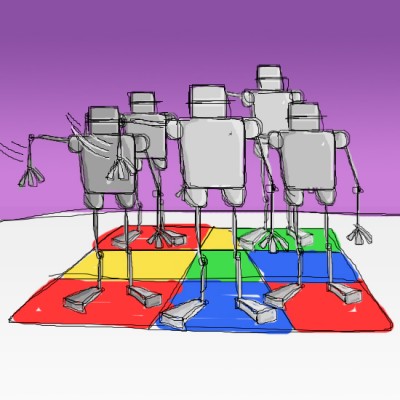
The Ffoeg Illustrations: Day 4
The fourth in a series of Illustrations by Geoff Gibson:

What Microsoft is getting right in Athens
 Microsoft and Hewlett-Packard are developing a concept computer code-named Athens to demonstrate technologies to be included in future products (serveral high-res photos are available). There isn’t much in this prototype that’s actually new and it’s more of a marketing tool than a technology demo. However, having putting a lot of simple and smart features together, they are on to something.
-
Screen real-estate
The demo model includes a $2000+ 20″ LCD (photo). The presented awknowledges that this is unrealistically expensive for the average business or home user, but cites a report that predicts that the same size screen will run about $400 in 2004 (presumably the end of 2004). Jakob Nielsen has been telling us this for years: large screens are not just for designers. There is a significant productivity gain from moving a typical user from a 15″ to a 17″ or 19″ display. -
Presence
A Microsoft researcher commented that a urinal can know when you walk away, but your PC can’t. I’ve written before about how user-presence should be done at the system (rather than application) level. This demo includes some nice moves on that front. Say I’m showing a small group a video or presentation on my PC. On hardware button (Do Not Disturb), and all of my communication systems are notified to leave me alone (incoming phone calls are diverted to voice mail, though callerID is available, and instant messaging status is set to “away”). -
PC as docking station
I’m now a full time laptop user, though I do plug in a mouse when at my desk. The Athens prototype is a docking station for a laptop as well as a PC. -
Unified Inbox
With telephony (the most hilarious word ever) technology built into the system, voicemail and caller ID can be easily incorporated into the universal inbox along with email and instant messaging. -
Smart sleep
Many systems do this well already, but the Athens PC ads a few nice touches, including fast wake-up and light indicators on the top of the screen that alert you of email, voicemail or alerts, even when the system is asleep (photo). -
Hardware controls
Many try and most fail to add useful hardware buttons to PCs and laptops. My ThinkPad has useful volume controls that let me easily mute or adjust my volume regardless of what application I’m using. If the phone rings while I’m playing I can always quickly kill the sound (though the Athens PC does this for you). The Athens PC includes hardware controls for presence (Do Not Disturb, etc.) and hardware indicators for email, voicemail, and reminders (as lights on the top of the screen). Microsoft’s enormous size could help them establish a simple convention that hardware manufacturers could support. After all, these people did add a new key to our keyboards.
For more details on the Athens PC, Microsoft has a Word Document with all of the details (695Kb). They are really hitting on some key points, demanding “Appliance-Like Availability” and quiet operation. Microsoft is in a strong position to dictate these types of moves to hardware manufacturers they have proven themselves in a similar program. In 2000, I wrote about Microsoft’s similar announcement of the TabletPC. Two years later, you could buy one. They did the same with their Media Center PC.
News.com has video of the Athens introduction (link only works in Internet Explorer thanks to News.com’s craptacular pop-up window video display).
Spare me the line about how your computer did some of these things back in 1995. I’m not claiming that these are innovative. Rather, it’s the combination of a lot of smart features (regardless of how innovative) that make this an attractive PC.
The Ffoeg Illustrations: Day 3
The third in a series of Illustrations by Geoff Gibson:

The Ffoeg Illustrations: Day 2
The second in a series of Illustrations by Geoff Gibson:
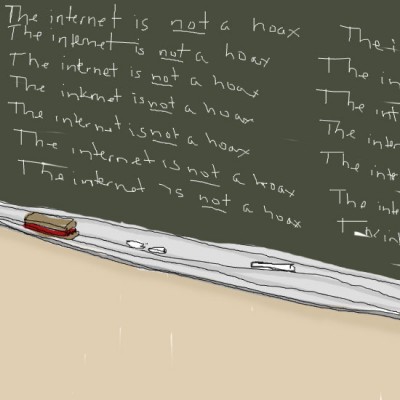
The gap between User and Programmer
A sharp distinction is often drawn between “using a computer” and “programming”. Using a computer might involve a simple action, like opening a web browser and reading the news. Programming might involved something like creating the web browser itself.
These seem like two different worlds. Clearly there is a significant difference in accessibility and learning curve. However, I wonder if this difference is only one of scale and magnitude or is there some more profound separation between using a computer and programming a computer.
We occasionally see features in mainstream applications that put the ordinary user in a role closer to that of a programmer.
- Macros in word processors, for example, are a (sometimes) simple programming language. A spreadsheet program like Microsoft Excel can be seen as an entire development platform alone (I have a theory that if we could have somehow invented Excel 50 years ago, we’d be living on Mars and we’d have a cure for cancer).
- Rules in email program. Outlook or other email programs allow users to setup simple conditionals to file or perform other actions on email. This relatively simple set of rules turns out to be quite powerful.
I wonder if we may be pushing this distinction too far. I’m not suggesting that my parents should be learning C++. They are quite content with email, web browsing, and word processing. Still, I worry about the unforeseen repercussions that may arise from the idea we have burned into our minds that programmers are programmers, users are users, and never the twain shall meet.
Are we building our systems in such a way that re-enforces the gap between users and programmers? Are we building systems that have a bias that makes it difficult or impossible for users to create their own functionality?
I don’t expect all Joe Hotmail to start writing device drivers. However, there are technologies that have been biased in the other direction: where the user is often the creator. HTML, for example was a simple-enough language that, even if it didn’t make it all the way to the average end user, it did enable a far larger circle than “programmers” to do interesting and creative things.
DOS batch files were simple enough that a lot of users who would not consider themselves to be “programmers” could do all kinds of powerful things (though it may have been out of cruel necessity). I remember an old high-school friend wrote a simple batch file that ran off a floppy disk on our school network. It displayed a prompt that looked exactly like the real network login screen. When an unsuspecting user typed in their username and password, it would output a realistic looking error message, and write the username/password to the disk (a “floppy-in-the-middle“ attack?). The confused user would move on to another machine, and my friend would come collect his disk full of network passwords at the end of the day. The key point is that this was possible with very little understanding of “programming”.
Here are a few tasks that someone might want to perform:
- Notify me when the Canadian/American currency exchange rate drops below a certain points. How would you do this? Excel can grab the exchange rate from a variety of web sources. Now we need a way to check this regularly and pass on the info to a notification of some kind (IM or email).
- Take all of those emails I get from my old-school co-worker with WordPerfect 5.1 attachments and convert them into Rich Text Format documents. How would you do this? Get all WordPerfect attachments from that particular sender, open them, and save them as RTF files with the same name in a destination directory.
- Have the top 5 New York Times front page stories print off at 6am.
These are a few examples of relatively simple tasks that would be difficult or impossible for most people to setup. Is it possible to put this kind of power in the hands of novice computer users? The individual components of these example tasks are all relatively simple with common applications. It’s the glue to tie them together that’s too difficult.
Is this a case of professionals conspiring to keep common-folk from trampling their sacred realm, or is it just hard to do well?
On a related note, Alan Kay gave a talk at the recent Emerging Tech conference that included video of children “programming” simple physics behaviour for learning purposes (QuickTime video of the presentation is available).
UPDATE: Soon after I made this post, I came across Matt Jones’ post on the topic.
The Ffoeg Illustrations: A Web Exhibition – Day 1
A friend of mind since before I was cool, Geoff Gibson (a.k.a. ffoeg) has always been a talented fellow. This week, he graciously shares a series of his illustrations with Acts of Volition. Each day this week (Monday through Friday), a new illustration will be posted.
This first of 5 illustrations to be posted this week:



Sharing Music on CBC
Just came from the CBC Radio offices here in Charlottetown where I recorded a quick piece with Matt Rainnie for a series on the local afternoon show, Mainstreet. He’s been bringing in people to share some of their favourite music. It seems I’m in good company as other geeks-with-taste who have done the show include Stephan McLeod and Peter Rukavina.

We chatted for a few minutes and Matt teed me up for a plug for my long-defunct-but-always-awsome high-school band, Horton’s Choice. Nice.
The piece will air tomorrow (Tuesday, May 6) after 4:30PM on CBC Radio PEI (96.1FM). I brought along Adam Again’s song Worldwide from their 1992 album, Dig: the two greatest musical minutes I’ve ever heard. Fine spring driving music.
Listen to a sample of Worldwide (realaudio). Since the song is only 2 minutes long, this 1 minute sample is pretty good.
Standards Save the Day
Last year I was doing some painting with a paint roller. The arm of the roller broke and we were stuck with a half-painted wall on a Sunday afternoon (all the hardware stores were closed).
It occurred to me to see if the broom handle, which screws into the broom head, would also fit into the paint roller.
Perfect fit. I don’t know if this is an actually official standard of some kind, or it if was just done to save manufacturing costs for Handle Co. Either way, it saved the day.
There is a lesson here.
The ultimate Weblogging system?
User interface critic and man-about-New Zealand, Matthew Thomas has outlined his view of the The ultimate Weblogging system. We’ve run our system against his checklist.
Good points all around. We ran our weblogging system against his list – citing where we’ve met his requirements and where we have not. While we are missing a fair number, I think we’ve done very well considering that our system was not built with the intention to be marketed or used by others. For example, you can pretty quickly rule out a Blogger import system by asking the three eventual end-users of your system, “Does anyone here use Blogger?”.
Some of the points are things I hadn’t considered and will be implemented thanks to Thomas’ suggestion (RSS feeds for categories, in particular).
I would encourage those with weblogging systems intended for wider use run their own system against this checklist as we have done here.
Here’s my annotated version of Matthew Thomas’ list:
(Note: grey text is from Matthew Thomas’ original post, bold text is our own. When I say “nope”, I’m not disagreeing; I’m saying that we don’t meet that given requirement.)
Forward compatibility- License under the GPL (minimizing lock-in, architecture rot, and wasted development effort). (nope – we’re a bit tied down here due to our reliance on proprietary code)
- Work with at least one Free database (e.g. mySQL). (nope, but PostgreSQL support may be coming)
- In case of emergencies, allow entries to be exported to XML. (nope)
- Use entirely non-crufty URIs. (check)
- Give individual entries URIs (permalinks) of the form
http://base/2003/05/02/oneMeaningfulWordFromTheTitle. (close, we have the wordarchivesin there, though I think we’ve hit the mark – 6 for 6 on this list – down with linkrot! Also, we’re generating an automatic “shortname” for the URL based on the title, but it is human-editable in case the robot’s suggestion doesn’t work out.)- No irrelevant system-specific cruft (e.g.
mt-static/,msgReader$, orweblog.cgi). (check) - No
?characters, so all entries get indexed by search engines. (check) - No irrelevant filetype-specific cruft (e.g.
.html,.php, or.xml). (check) - Every entry is on its own page, not just an internal anchor on a daily/weekly archive (which makes search engines and statistics tools less useful). (check)
- Net effect: Even with a stupidly worded inbound link (e.g. “I came across this”), a reader can tell a lot about an entry (host, date, and hint at subject) from glancing at its URI. (check)
- Something Thomas didn’t mention: support for the old URLs of imported content – we’re handling the old ColdFusion based URLs from two years of Acts of Volition transparently.
- No irrelevant system-specific cruft (e.g.
- Give daily archives URIs of the form
http://base/2003/05/02/. (we don’ have daily archives) - Give monthly archives URIs of the form
http://base/2003/05/. (close enough) - Give yearly archives URIs of the form
http://base/2003/. (close enough) - Give category archives URIs of the form
http://base/name-of-category/2003/05/, etc. (close enough) - Theory: URL as UI, Cool URIs don’t change.
- Practice: Making clean URLs with Apache and PHP.
- Give individual entries URIs (permalinks) of the form
- Metadata
- Each entry has a title, a category string, contents, time posted (auto-generated), and one or more objects (e.g. images). (not quite)
- Invite (but do not require) the author to provide a summary for any item longer than n words, for use in mobile editions and RSS feeds. (no, but we are generating relatively good automated summaries with a brief excerpt, and word count – human-written summaries coming soon)
- Categories are faceted. I may categorize an entry by subject, by current location (integrating with GPS devices), by mood, and so on. (nope)
- Each category facet can be hierarchical. (For example, an “interface design” subject category could be subdivided into “desktop application design”, “Web design”, “appliance design”, and “signage and artifact design”.) (we didn’t think this was necessary for our humble blog, but it is a good point)
- Invite (but do not require) an author to subdivide a category whenever it collects more than n entries (rather than forcing them to be architecture astronauts specifying all their categories at the beginning). (nope)
- An entry may have multiple values for each category facet. (For example, one post might be about both CSS specifications and buggy Web browsers.) (check)
- Why does all this need to scale so deeply? Because when you’ve been keeping a Weblog for twenty or thirty years, and you can’t remember any semi-unique words you used in a particular entry, finding it will be horribly difficult, and you’ll need all the semantic help you can get. (interesting – Stuart Brand would be proud).
- Syndication
- Provide an RSS feed for the Weblog as a whole. (check)
- Provide an RSS feed for any category. (great idea! – coming soon)
- Because of the faceting, category feeds will need to be dynamically generated, but they should still send correct caching responses. (we are not caching)
- Automatically ping Weblogs.com. (check)
- Automatically convert Slashdotted entries to static pages, and switch back to dynamic generation once the traffic subsides. (oh, to be slashdotted… nope)
- Integrate support for Creative Commons licenses. (not yet)
- Management
- Web interface. (check)
- Native LinuxSTEP interface. (huh?)
- Accept entries from software on any other platform or device, using the metaWeblog API. (not yet)
- Accept entries sent by e-mail. (nope)
- Make it easy to send entries from a mobile phone (e.g. by replicating the features of Textile). (nope)
Backward compatibility- Import entries from Blogger, Radio, Manila, Movable Type etc. (not automatically, but if you are a database wiz…)
- Keep URLs the same for legacy entries, while still allowing control over their appearance. (check)